Installing SQL Server Express @ Dhante.com
1. Synopsis
This document describes the installation procedure for SQL Server Express on Windows.
This free version will allow for DB sizes up to 10GB.
2. Download SQL Server
-
Download SQL Server Express via the SQL Server 2019 setup program.
-
Run it.
-
Then click on the Download Media button to download a self extracting
.exefile which can then be stored on a file server share.
4. Configure SQL Server
4.1. Launch SQL Server 2019 Configuration Manager
-
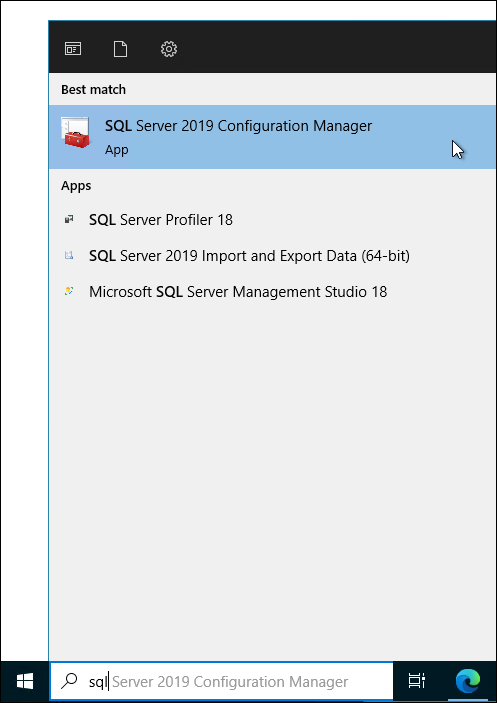
Find and Launch SQL Server Configuration Manager:
 ]
]
4.2. Configure Protocols for SQLEXPRESS
-
Enable
TCP/IP-
Right click on Protocols for SQLExpress
-
Expand
SQL Server Network Configuration. -
Right click on
TCP/IP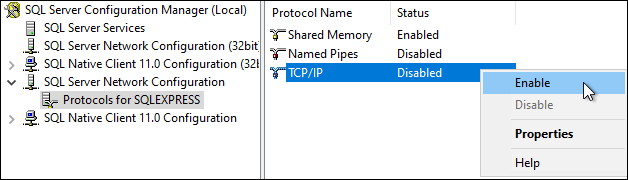
-
Click on
Enable.
-
-
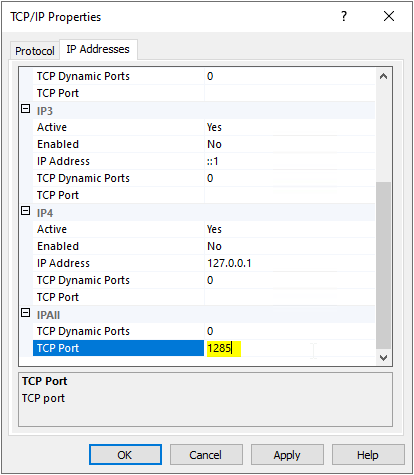
The default port for SQL Server is 1433 but it can be set to a custom value within the
TCP Portsetting.-
Right click on
TCP/IPand chooseProperties. -
Click the
IP Adressestab. -
Scroll to the bottom of the window.
-
Add the port Note: we are using a custom port:
-
5. Configure Firewall
-
Full document here
-
Launch an elevated CMD prompt window.
-
Run the
netshcommand. Note: if you specified a custom port in the previous state, you should specify that value here too as thelocalportvalue:netsh advfirewall firewall add rule name = MSSQL dir = in protocol = tcp action = allow localport = 1285 remoteip = localsubnet profile = DOMAIN
6. Install SQL Server Management Studio (SSMS)
-
Install SSMS on the server that hosts the SQL Server and on any number of desktops.
6.1. Download SSMS
-
Download from here
7. Set Database Default Location
-
This step is optional
-
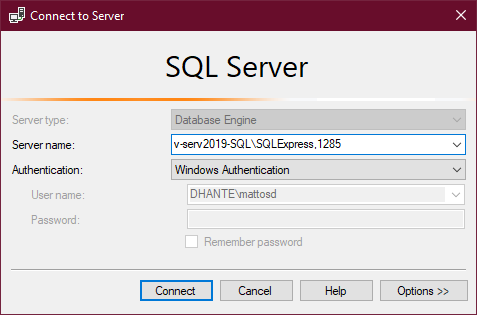
Connect to the the SQL Server via SqlServer Management Studio
-
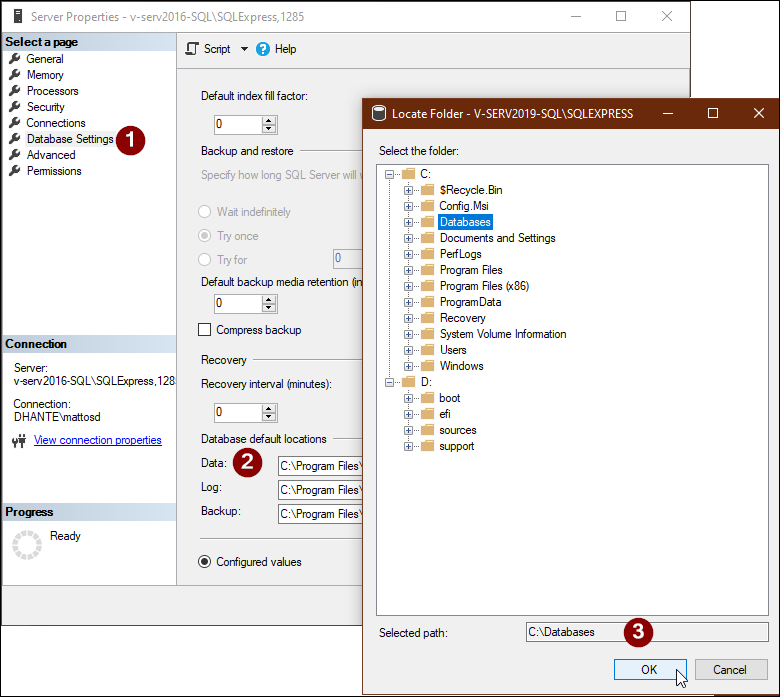
Right mouse click on the server name and select
Server Properties.
-
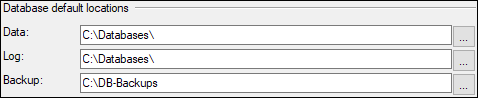
Change DB Settings
-
Even after making the changes, the gui will still reflect the old values until the SQL Server is restarted.
-
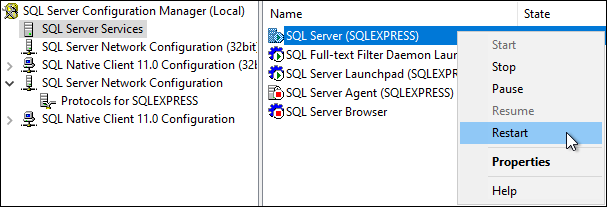
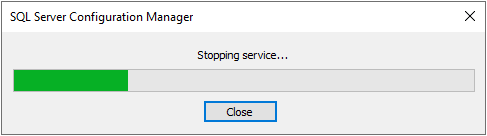
Restart SQL Server
This operation may have to be completed on the server that hosts the SQL Server. 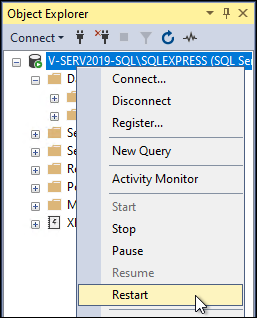
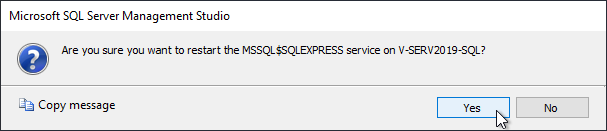
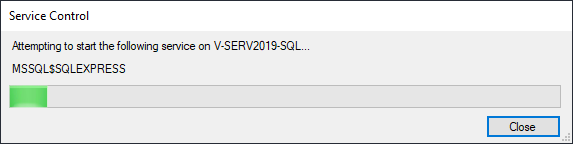
-
Confirm changes have been made: