Python Install
1. Install Python on Debian Linux
1.1. Install
-
Update package list
sudo apt update -
Install software-properties-common to manage PPAs (Personal Package Archives):
sudo apt install software-properties-common -
Add the deadsnakes PPA which is used for installing multiple Python versions
sudo add-apt-repository ppa:deadsnakes/ppa -
Install Python
sudo apt install -y python3.11 -
Optionally install TK for GUI creation
sudo apt install -y python3-tk-
Now you’ll see new folders here
/usr/libexamplels -ltr /usr/lib drwxr-xr-x 3 root root 4096 May 20 20:06 tcltk drwxr-xr-x 117 root root 86016 May 20 20:06 x86_64-linux-gnu drwxr-xr-x 2 root root 4096 May 20 20:06 blt2.5 drwxr-xr-x 32 root root 4096 May 20 20:06 python3.10 drwxr-xr-x 6 root root 4096 May 20 20:06 python3.11
-
2. Install Python on Windows
3. Configure VS Code
3.1. Install Extensions
3.1.1. Generic
-
Install these extensions:
-
AsciiDoc
-
Docker
-
Draw.io Integration
-
Excel Viewer
-
Fluent Icons (product icons for vertical nav bar)
-
HTML Preview
-
Material Icon Theme (icons for files)
-
Real Visual Studio
-
Remote Development
-
REST Client
-
YAML
-
3.1.2. Python
-
Launch VS Code.
-
Install the Python extension for VS Code from the
Visual Studio Marketplace. -
Configure the Python Interpreter:
-
Open the Command Palette via Ctrl+Shift+P and start typing the
Python: Select Interpretercommand to search, then select the command. -
For a fresh install, enter the following path:
C:\Users\<username>\AppData\Local\Programs\Python\Python3xx
-
-
Configure the Pylance
Language Server-
Open the Settings Menu in order to configure the following:
-
Enable
Type Checking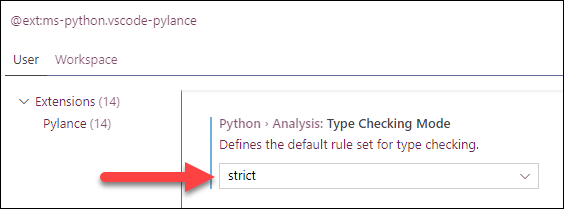
-
-
3.1.3. Test Python
-
Create Test script
-
Create a Hello-World.py script.
def main():
    msg = "Hello World"
    print(msg)
    party_invite()

def party_invite():
    # get the age from the current user
    age_input = input('Please enter your age: ')
    age = int(age_input)

    # decide if they are eligible for the after party
    if age >= 21:
        print("Hey, we're having an after party.")
        print('Drop by 123 Vine St at 8pm')
    else:
        print('Nice to meet you but you are to young to party :-(')
    return


main()
4. Learning Resources
4.1. Training
-
Python for C# Programmers Guide.
-
Socratica Video Tutorial Series.