GitLab Notes
Table of Contents
1. Install
-
Create the Podman compose file
Click to expand for compose file
podman compose fileservices: # https://www.howtogeek.com/devops/how-to-deploy-a-gitlab-server-with-docker/ # For initial log in, extract root password via: # podman exec -it GitLab-Server grep 'Password:' /etc/gitlab/initial_root_password gitlab: container_name: GitLab-Server image: docker.io/gitlab/gitlab-ce:latest hostname: sourcecontrol.xackleystudio.com privileged: true ports: - '2224:22' - '8929:80' - '8447:443' environment: - TZ=America/New_York #- GITLAB_OMNIBUS_CONFIG="external_url 'http://sourcecontrol.xackleystudio.com'" - PUID=1000 - PGID=1000 volumes: - ./GitLab-data/config:/etc/gitlab:Z - ./GitLab-data/logs:/var/log/gitlab:Z - ./GitLab-data/data:/var/opt/gitlab:Z shm_size: '256m' restart: unless-stopped #restart: 'no' #entrypoint: ["echo", "Service disabled"] gitlab-ai-gateway: container_name: GitLab-AI-Gateway-Server image: registry.gitlab.com/gitlab-org/modelops/applied-ml/code-suggestions/ai-assist/model-gateway:latest privileged: true ports: - 5052:5052 environment: - AIGW_GITLAB_URL=sourcecontrol.xackleystudio.com - AIGW_GITLAB_API_URL=https://sourcecontrol.xackleystudio.com/api/v4/ restart: unless-stopped
3. Initial GitLab Setup
3.2. Login as Administrator
-
Get the root password
Extract from the log filepodman exec -it GitLab-Server grep 'Password:' /etc/gitlab/initial_root_passwordExamplepodman exec -it GitLab-Server grep 'Password:' /etc/gitlab/initial_root_password Password: 0Q/EEgkjMAHrbpHcT6ZsqPj9N7IsIuZ/Q+dX45dFUas= -
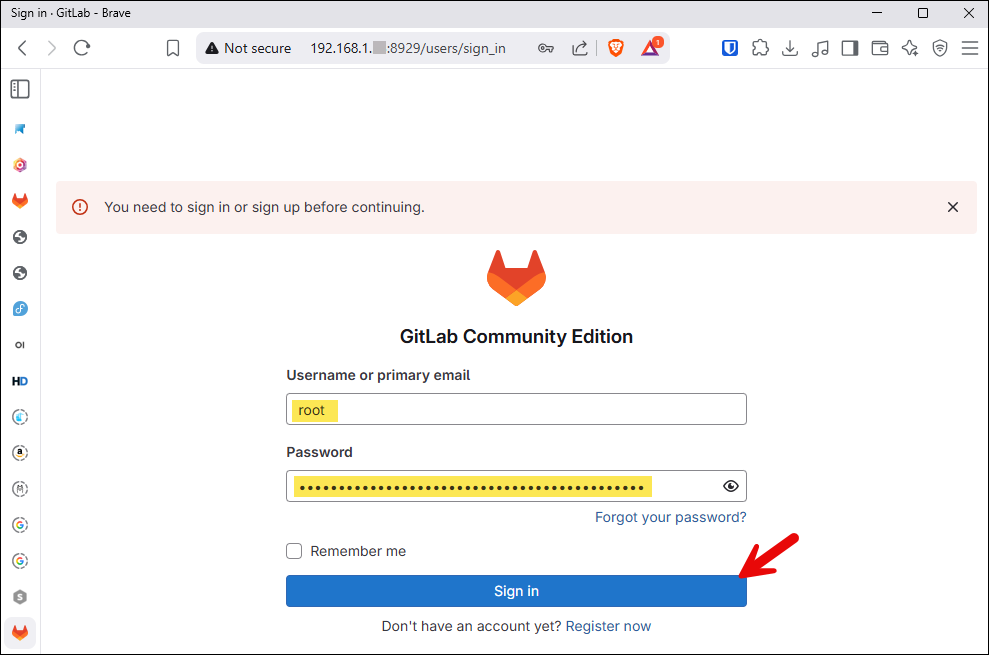
Launch the site in a web browser
http://<ip address>:8929 -
Log in as an administrator with user=root and the previously retrieved password.
3.3. Appearance
-
Click on the Admin button in the upper right-hand corner.
-
Select the
-
Set the Site name
-
On the bottom of the window, click the Update appearance settings
3.4. Create Users
-
In the left pane, click on the menu item.
-
Click the New user button.
-
Fill in the user details and click the Create user button.
3.5. Additional Setup
-
Refer here for additional setup.