Smart Home Notes
1. Apps
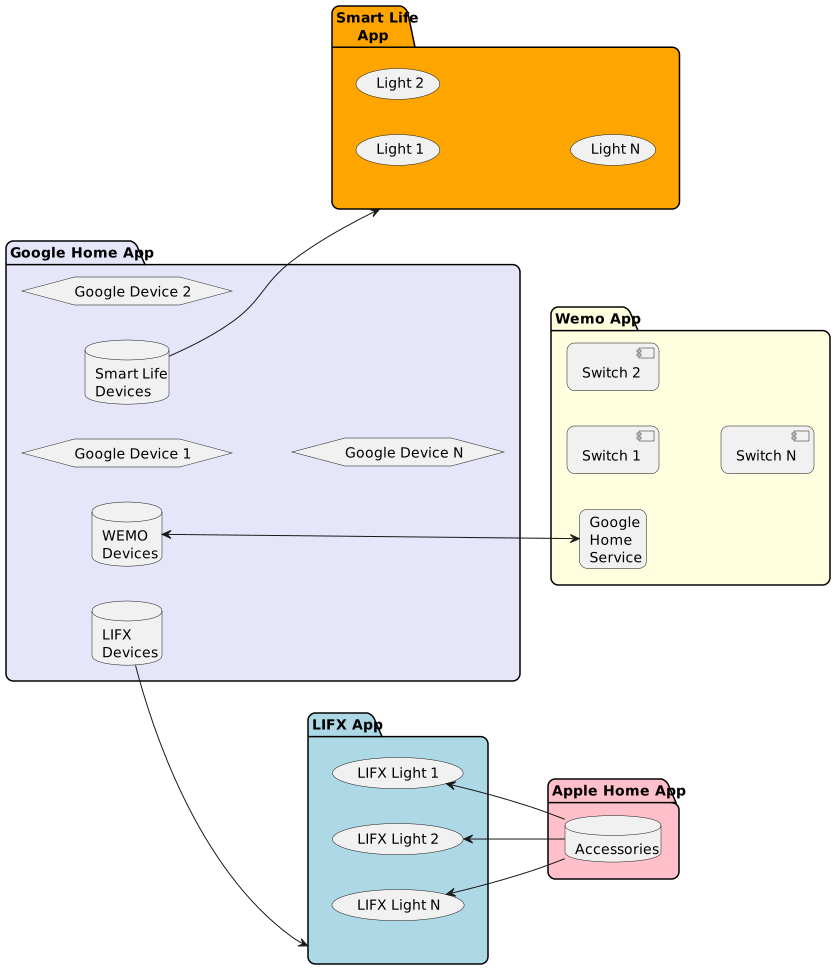
Google Home and Apple Home are used to control smart-home devices.
Click to show diagram

Click to show diagram
2. LIFX
The LIFX website is here.
2.1. LIFX Timers
-
The bedroom light is configured to turn on at 05:30 AM with minimum brightness. It will gradually achieve full brightness 30 minutes later.
-
All lights start to fade at 09:30 PM until 10:00 PM
2.2. LIFX HomeKit Codes
Click here to open
| Device | Type | Code | Serial |
|---|---|---|---|
Still in Box Spare |
LIFX Clean A19 1100lm |
737-71-893 |
D073D56CEB26 |
Still in Box Spare |
LIFX Clean A19 1100lm |
721-88-194 |
D073D56CF55B |
Bathroom Lamp |
LIFX Clean A19 1100lm |
765-28-400 |
D073D56CD296 |
Broken |
LIFX (A19) |
675-49-164 |
D073D5215043 |
Bedroom Lamp |
LIFX Color A19 1100lm |
979-94-934 |
D073D5704616 |
Doorway Lamp |
LIFX Mini W |
874-24-412 |
D073D530A919 |
Broken - Disposed |
LIFX (A19) |
343-25-155 |
D073D5214972 |
Hallway Lamp |
LIFX Mini W |
166-76-574 |
D073D530F3F7 |
Living Room Lamp |
LIFX (A19) |
932-92-726 |
D073D521497E |
Living Room Lamp 2 |
LIFX Color A19 1100lm |
760-48-628 |
D073D56B500B |
Foyer Lamp |
LIFX Clean A19 1100lm |
D073D56D25A4 |
3. TP-Link
-
Devices: Tapo P110M
3.1. Tapo Matter Devices
3.1.1. Install App
-
Find the TP-Link Tapo app in the App Store.
-
If the device has been powered up for more than 15 minutes, power down and then back up.
-
Add the device.
(This is very intuitive and doesn’t need to be documented here.)
3.1.2. Tapo Connect to Google Home Service
-
Start the
Tapoapp -
Log in
-
Click on the account picture in the upper left-hand corner.
-
Click on
-
Click on Google Assistant
-
Click on Tapo Actions
-
Click on Link from Google Home app
-
Google Home will be launched
-
In Google Home, click Continue
-
Confirm the Privacy Policy check box.
-
Click on Agree & link
4. WeMo (Belkin)
The WeMo website is here.
5. Google Home
7. IFTTT (If This Than That)
The IFTTT website is here.