PHP Install
1. Install PHP
-
Install a specifc version of
PHPrequired forNextcloud:sudo dnf module install php:7.4 -
Install
PHPand related modules:sudo dnf install php php-fpm php-zip php-mysqlnd php-opcache php-gd php-xml php-mbstring php-json -y -
Start
PHP-FPM:sudo systemctl start php-fpm -
Enable
PHP-FPMto start when the system starts:sudo systemctl enable php-fpm -
Check
PHP-FPMstatus:sudo systemctl status php-fpm -
Restart the
Apacheweb server in order to runPHPcode.:sudo systemctl restart httpd -
Allow
SELinuxto executePHPcode viaPHP-FPM:sudo setsebool -P httpd_execmem 1 -
Test
PHP-FPM:-
Create an
info.phppage:sudo vi /var/www/html/info.phpEnter the following text:
<?php phpinfo(); ?> -
Launch your browser and browse to the new
PHPpage:
-
Confirm the
PHPPage looks similar to the following:
-
After confirming the
PHPinstall, you can now remove theinfo.phppage:sudo rm /var/www/html/info.php
-
2. Install phpMyAdmin PHP Administrative Interface for MariaDB (MySQL)
|
This is an optional |
-
Install prerequisites:
-
Install
ApacheRefer to Apache Webserver Install on Linux
-
Install
MariaDBRefer to MariaDB Notes
-
-
Orginal instructions are here.
-
Go to the
/tmpdir:cd /tmp -
Identify the lastest
.xzversion of thephpMyAdminpackage from here.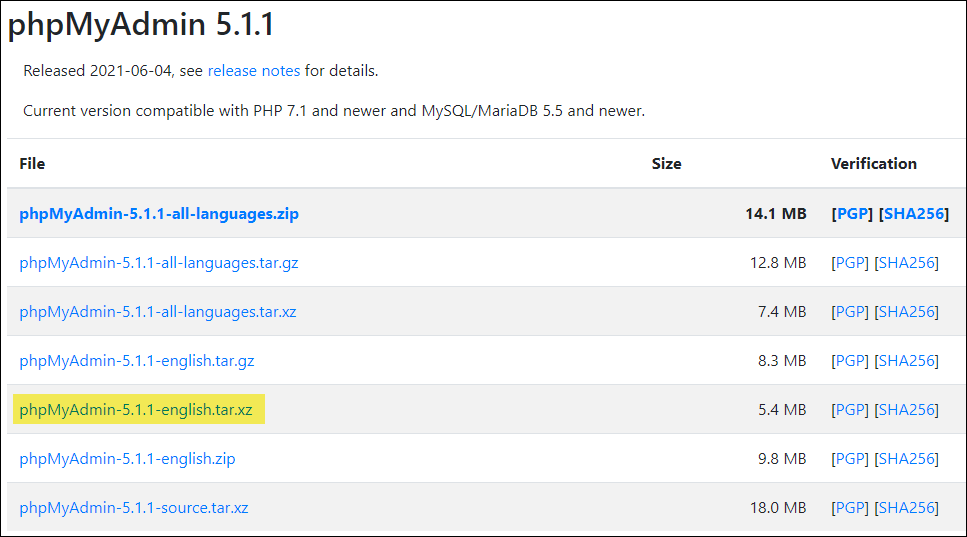
-
Download the latest version via
curl:curl --remote-name-all https://files.phpmyadmin.net/phpMyAdmin/5.1.1/phpMyAdmin-5.1.1-english.tar.xz -
Extract the
.xzfile into theApachehtml folder:sudo tar -C /var/www/html -xvpJf /tmp/phpMyAdmin-5.1.1-english.tar.xz -
Rename the folder:
sudo mv /var/www/html/phpMyAdmin-5.1.1-english /var/www/html/phpmyadmin -
Launch the
phpMyAdmininterface:http://v-RedHat00/phpmyadmin -
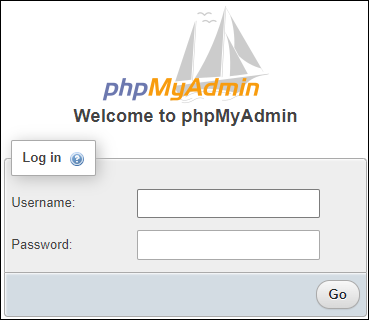
Confirm that the Log in prompt appears: