Plex Setup
2. Setup Plex Server
2.1. Claim Plex Server
-
This process will link the new Plex Server to your account
-
Get a
Claim CodeGet code from herehttps://www.plex.tv/claim/You must open this web page from the server that hosts the Plex Docker container -
Update the
compose.ymlfile with theClaim Code:environment: - TZ=America/New_York - PUID=1000 - PGID=1000 - PLEX_CLAIM=claim-123456789ABCDEFGHIJK (1) - HOSTNAME=”PlexServer”
1 Claim Codegoes here -
Restart the Docker Plex container quickly before the
Claim Codeexpires in 4 minutes!Restartsudo docker-compose up -d
-
2.2. Configure Remote Access
-
This will allow external access to the Plex Docker Container i.e., any applications outside of the local network.
2.2.1. Configure Router
-
Configure the Router to point the
External Public Portto the public port of the docker container.
In this instance we’ll configure external public port 32401 to the docker container’s public port of 32400-
Connect to the Router’s administrative website
-
Configure
Port Forwarding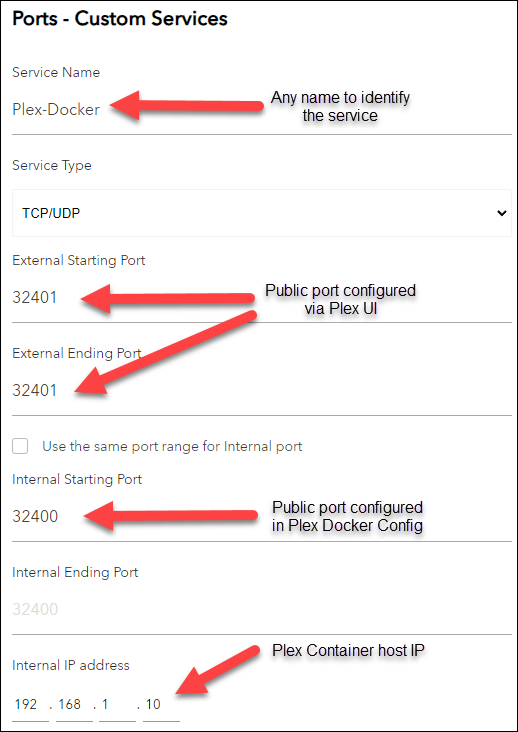
-
2.2.2. Configure Plex
-
Launch Plex settings page
Plex UI Settingshttps://app.plex.tv/desktop/#!/settings/web/generalExternal access hasn’t been configured yet so open this web page from the server that hosts the Plex Docker container -
Currently this server has the same name as the Docker Container. Give it a more friendly name e.g.,
Plex-Docker -
Check the Allow me to access my media outside my home checkbox.
-
Skip the Media Library setup - we can do this later.
-
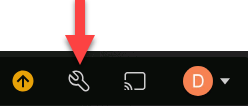
Click the Settings icon (wrench icon in upper right corner)
-
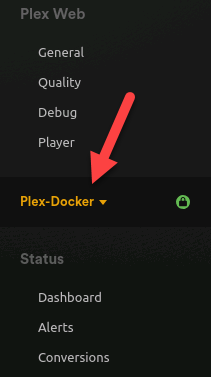
In the left menu, confirm that the new Plex-Docker server is selected.
-
Scroll down to
Remote Accessmenu item. This should have a red exclamation point.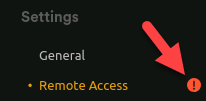
-
Click
Remote Access. -
Click the Manually specify public port checkbox.
-
Change the value to 32401 and click the Retry button.
-
After a few moment a confirmation should appear.

-
And the
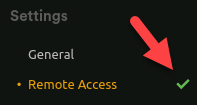
Remote Accessleft menu item should have a green check mark.