NextCloud Install
1. Synopsis
This document describes the installation procedure for installing NextCloud on RHEL/CentOS. Original documentation can be found here.
2. Prerequisites
2.1. LAMP Stack
Refer here to LAMP Stack.
3. Setup Database
-
Full instructions are here.
-
Run the following 4 sql statements:
$ mysql -u root -p (1)
Enter password:
Welcome to the MariaDB monitor.  Commands end with ; or \g.
Your MariaDB connection id is 70
Server version: 10.3.28-MariaDB MariaDB Server

Copyright (c) 2000, 2018, Oracle, MariaDB Corporation Ab and others.

Type 'help;' or '\h' for help. Type '\c' to clear the current input statement.

MariaDB [(none)]> CREATE USER 'NextCloudAdmin'@'localhost' IDENTIFIED BY 'aSecurePasswd1234'; (2)
Query OK, 0 rows affected (0.001 sec)

MariaDB [(none)]> CREATE DATABASE IF NOT EXISTS NextCloudDB CHARACTER SET utf8mb4 COLLATE utf8mb4_general_ci;
Query OK, 1 row affected (0.001 sec)

MariaDB [(none)]> GRANT ALL PRIVILEGES on NextCloudDB.* to 'NextCloudAdmin'@'localhost'; (3)
Query OK, 0 rows affected (0.001 sec)

MariaDB [(none)]> FLUSH privileges;
Query OK, 0 rows affected (0.001 sec)

MariaDB [(none)]> quit; (4)
Bye
1 CREATE USER 'NextCloudAdmin'@'localhost' IDENTIFIED BY 'aSecurePasswd1234'; 2 CREATE DATABASE IF NOT EXISTS NextCloudDB CHARACTER SET utf8mb4 COLLATE utf8mb4_general_ci; 3 GRANT ALL PRIVILEGES on NextCloudDB.* to 'NextCloudAdmin'@'localhost'; FLUSH privileges; 4 quit; -
Launch the
phpMyAdmininterface and log in with the root account that was set up during the MariaDB configuration:http://v-RedHat00/phpmyadmin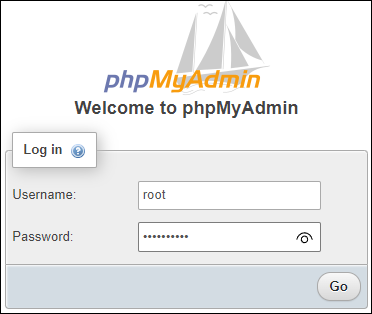
4. Setup NextCloud in Apache
-
Full instructions are here. You’ll need to scroll down halfway through the page to the
Installing Nextcloudsection. -
Download
NextCloud.zip file from here. -
Place that downloaded zip file into /tmp.
-
Go to the /tmp dir:
cd /tmp -
Unzip the file:
unzip nextcloud-*.zip -
Copy the content over to the root directory of
Apache:sudo cp -R nextcloud/ /var/www/html/ -
Create a data folder:
sudo mkdir /var/www/html/nextcloud/data -
Grant the apache user read and write access to the
nextcloudfolder:sudo chown -R apache:apache /var/www/html/nextcloud -
Restart apache:
sudo systemctl restart httpd.service -
Configure SELinux:
semanage fcontext -a -t httpd_sys_rw_content_t '/var/www/html/nextcloud/data(/.*)?'
semanage fcontext -a -t httpd_sys_rw_content_t '/var/www/html/nextcloud/config(/.*)?'
semanage fcontext -a -t httpd_sys_rw_content_t '/var/www/html/nextcloud/apps(/.*)?'
semanage fcontext -a -t httpd_sys_rw_content_t '/var/www/html/nextcloud/.htaccess'
semanage fcontext -a -t httpd_sys_rw_content_t '/var/www/html/nextcloud/.user.ini'
semanage fcontext -a -t httpd_sys_rw_content_t '/var/www/html/nextcloud/3rdparty/aws/aws-sdk-php/src/data/logs(/.*)?'

restorecon -R '/var/www/html/nextcloud/'

setsebool -P httpd_can_network_connect on
5. Run NextCloud Installation Wizard
-
Full instructions are here.
-
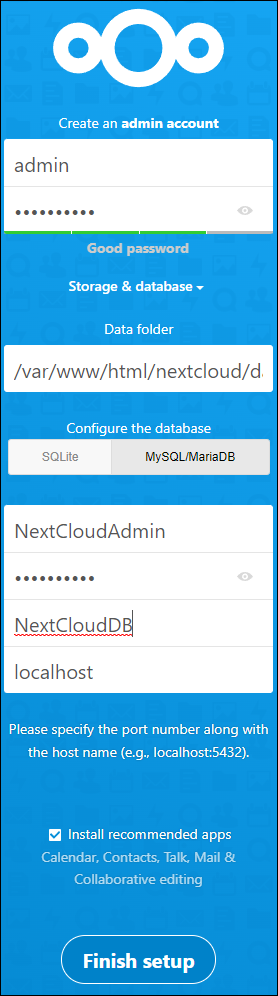
Launch the Installation Wizard interface:
http://v-RedHat00/nextcloud -
Configure:
-
admin account/password
-
data directory (take the default)
-
database connection
-
Click the Finish setup button.
-
6. Configure Reverse Proxy
6.1. Reverse Proxy NextCloud Configuration
-
At this point the Nextcloud interface is only accessible via hosts on the local Lan. We want to open this up to the internet.
-
Full instructions are here.
-
Edit the config.php file:
sudo vi /var/www/html/nextcloud/config/config.phpset the following values to the `$CONFIG = array `:
'trusted_proxies' => ['192.168.1.2'], 'overwritehost' => 'cloud.xackleystudio.com', 'overwriteprotocol' => 'https', 'overwritecondaddr' => '^192\.168\.1\.2$', -
Browse to: https://cloud.xackleystudio.com/nextcloud